


You are out for lunch during the London session and want to confirm your EA is still running. Your laptop is at home, switched off, but your trading VPS is still working. Yes, you can manage a trading VPS from your phone using a Remote Desktop app to log in to the Windows server and check, restart, or adjust your setup from anywhere.
The phone becomes a small control panel for monitoring and quick fixes, while a desktop stays better for chart analysis and precise execution. This guide covers what phone access can do, how to set it up on iOS and Android, what to avoid on a small screen, and how to keep the connection secure.
What Can You Do With a Trading VPS From Your Phone?
You can monitor and control your Windows trading VPS from a phone using a Remote Desktop app, including checking charts, restarting a platform, and confirming an EA is active. The phone is not running the trading platform itself. The VPS server in the data center does the work, and your phone only connects to its screen.
MT4, MT5, cTrader, Quantower, NinjaTrader, and Sierra Chart keep running on the server regardless of what your phone is doing. Mobile trading apps from brokers have grown sharply, with mobile accounting for a large and rising share of retail forex activity (Source: Finance Magnates, 2023). Remote VPS access extends that same convenience to your full server environment, not just a single broker app.
Phone access is most useful for monitoring and quick fixes. The table below maps each common task to why a trader reaches for it.
| Quick Task | Why It Matters on Mobile |
| Check MT4 or MT5 connection status | Confirm the platform is still linked to the broker |
| Restart a frozen trading platform | Recover from a hang without reaching a desktop |
| Confirm EAs are active | Verify automated strategies are still trading |
| Review open positions | Glance at exposure while away from your desk |
| Check broker connection latency | Spot a slow or dropped route to the broker |
| Monitor automated trading strategies | Watch bot activity during a live session |
| Update a single setting | Adjust one value during travel |
| Access the VPS when your home PC is off | Reach the server when no desktop is available |
A phone is best for quick checks. A desktop remains better for chart analysis, detailed platform setup, and live trading decisions that need precision.
How Do You Set Up Remote Desktop on iOS and Android?
You set up phone access by installing a Remote Desktop app, adding your VPS connection details, and logging in with your Windows credentials. Most Windows VPS setups use Remote Desktop Protocol, often called RDP, which lets you control the server from another device.
Microsoft Remote Desktop is now commonly delivered through Microsoft’s Windows App on supported devices. Many traders still call it Microsoft Remote Desktop because that was the familiar app name for years. The two sections below cover the connection steps and the checks to run before you connect.
How Do You Connect From an iPhone or Android Device?
You connect by adding your VPS as a new PC in the Remote Desktop app, then entering its IP address and your Windows login. The process is the same on iOS and Android.
| Step | Action |
| 1 | Install the Remote Desktop or Windows App on your phone |
| 2 | Open the app and add a new PC or server connection |
| 3 | Enter the VPS server IP address or hostname |
| 4 | Add your Windows username |
| 5 | Enter your password when prompted |
| 6 | Accept trusted security prompts only when the details are correct |
After connecting, the phone shows your VPS desktop. You can tap, drag, zoom, and type using the mobile keyboard. Keep your login details somewhere secure and never store the RDP password in plain text on your phone.
What Should You Prepare Before Connecting?
Prepare by confirming your VPS is fully configured and your trading software is logged in before you attempt mobile access. A phone is for managing a working setup, not building one from scratch.
| Readiness Check | Why It Is Needed |
| Remote Desktop is enabled on the VPS | Allows the phone to connect at all |
| Password is strong and unique | Protects a high-value login |
| Trading software is already installed | Phones are poor for installation |
| MT4 or MT5 is logged in to the broker | Ensures the platform is live before you check it |
| EAs are attached correctly | Confirms automation runs without desktop fixes |
| VPS has enough CPU and bandwidth | Prevents lag and dropped sessions |
| Broker servers are reachable from the data center | Confirms orders can route to the broker |
| Phone has fast internet or reliable mobile data | Keeps the remote session smooth |
A good forex VPS service should feel easy to reach, but the trading environment still needs to be set up properly first.
What Can You Comfortably Do on Mobile?
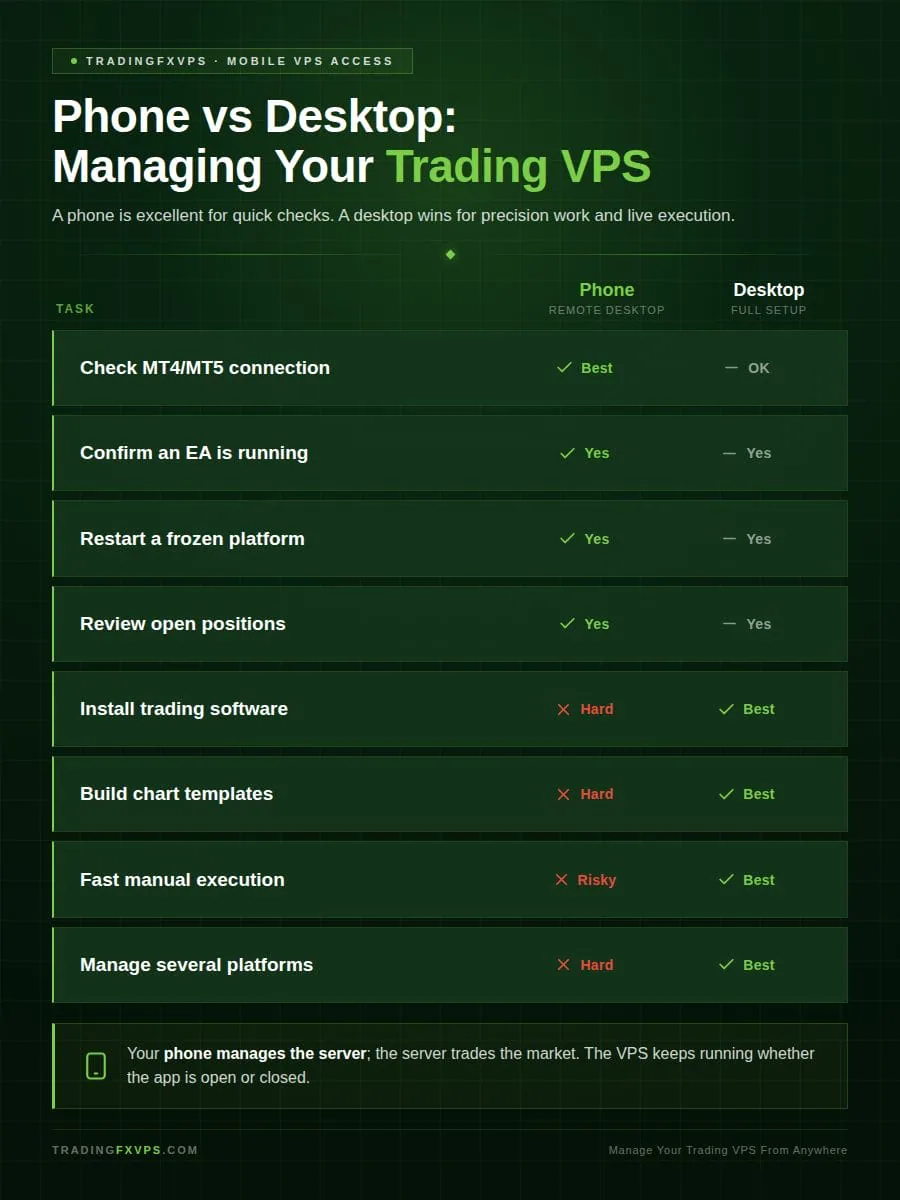
A phone is excellent for monitoring and weak for careful execution. The screen is smaller, touch controls are less precise, and switching between windows feels cramped, which makes the phone reliable for quick checks and risky for detailed work.
The table below maps common tasks to where they belong.
| Task | Good on Phone? | Better on Desktop? |
| Check if MT4 is connected | Yes | No |
| Confirm an EA is running | Yes | Sometimes |
| Restart a trading platform | Yes | Sometimes |
| Review open trades | Yes | Sometimes |
| Change one simple setting | Yes | Sometimes |
| Install new trading software | Not ideal | Yes |
| Build chart templates | Not ideal | Yes |
| Execute fast manual trades | Risky | Yes |
| Manage several platforms | Hard | Yes |
What Is Mobile Access Best For?
Mobile access is best for quick control when you are away from your desk. A trader might check whether the VPS is online during a lunch break, or confirm an EA is still running mid-session.
This matters most when your main computer is unavailable. If your laptop battery dies or your home internet drops, the VPS keeps running inside the data center. You reconnect from your phone and check the platform without rushing back to a desktop.
What Should You Avoid Doing From a Phone?
Avoid complicated changes on a small screen, because a single tap error can become a costly trading mistake. Precision tasks belong on a desktop.
| Risky on a Phone | The Danger |
| Opening large manual trades | A mistap can size or direction a position wrong |
| Moving stop losses quickly | Imprecise touch can set the wrong level |
| Editing EA inputs | A wrong value can break automated logic |
| Installing platform updates | Updates can stall or fail on a small screen |
| Managing several broker accounts | Cramped switching invites account mix-ups |
| Changing chart templates | Fiddly to set correctly on touch controls |
| Typing long passwords in public | Exposes credentials to onlookers |
If you scalp or execute during fast market moves, use a proper desktop whenever possible. Low latency helps the server reach the broker quickly, but your mobile screen can still slow your own reactions.
How Do You Keep the Connection Secure?
You keep mobile access secure by using a strong unique password, enabling Network Level Authentication, and avoiding public Wi-Fi. A trading VPS holds broker logins, platform files, and trading data, so the login is a high-value target.
Remote Desktop is a frequent target for credential attacks, and Microsoft has documented brute-force attempts against exposed RDP endpoints (Source: Microsoft Security, 2020). The two sections below cover protecting the login and protecting the platforms running on the server.
How Do You Protect the VPS Login?
Protect the login with a strong password that is unique to the VPS and never reused from your broker or email. Layered habits keep the session safe even if one control fails.
| Security Habit | What It Prevents |
| Use a password manager | Weak or reused passwords |
| Lock your phone with biometrics or a PIN | Access if the phone is lost or stolen |
| Avoid public Wi-Fi | Credential interception on open networks |
| Do not share RDP credentials | Unauthorized access to the server |
| Log out after sensitive changes | Lingering open sessions |
| Keep the phone app updated | Exploits in outdated app versions |
| Enable two-factor protection where supported | Login on a stolen password alone |
| Ask the hosting provider about firewall rules | Unrestricted exposure of the RDP port |
Network Level Authentication should be enabled when available. It adds a verification step before the full remote session is created.
How Do You Protect Trading Platforms on the Server?
Protect the platforms by installing only trusted software and updating during quiet hours. A clean server is harder to compromise and less likely to fail mid-session.
| Safety Habit | What To Do |
| Keep the server clean | Only install trusted trading apps, EAs, indicators, and tools. |
| Avoid risky files | Do not use cracked indicators, unknown EAs, or random installers. |
| Update during quiet hours | Update Windows, MT4, MT5, cTrader, and other software when trading activity is low. |
| Reboot carefully | Restart only when it is safe and your trades are protected. |
| Check automated trading | If you use an EA or bot, confirm it restarts properly after a reboot. |
Does Phone Access Affect Latency or Slippage?
No. The phone only views and controls the VPS, so it does not sit in the order path between your server and the broker.
Your trading platform runs on the server inside the data center. Order latency depends on the route between the VPS and the broker, not the route between your phone and the VPS.
Your phone manages the server. The server trades the market. Keeping those two roles separate is what makes mobile VPS access both convenient and safe.
The Bottom Line: Should You Rely on Phone Access?
Yes, phone access is a reliable way to monitor and manage a trading VPS, as long as you treat it as a control panel rather than a trading terminal. It excels at quick checks, restarts, and EA confirmation, and falls short on precise execution and complex setup.
The split below sums up where each device belongs.
| Use Your Phone For | Use a Desktop For |
| Checking connection and EA status | Live manual trading and scalping |
| Restarting a frozen platform | Installing software and updates |
| Reviewing open positions | Building chart templates |
| Adjusting a single setting | Managing several platforms at once |
Set the VPS up properly once on a desktop, secure the login, and the phone handles everything else from anywhere.
Ready to Run a VPS You Can Check From Anywhere?
A trading VPS keeps your platforms and EAs running around the clock, whether your home computer is on or off. TradingFXVPS provides Windows forex VPS hosting built for low-latency connections to major brokers, with full Remote Desktop access from iOS and Android.
Visit TradingFXVPS to choose a setup that matches your broker, platform, and trading style. Have questions about which plan fits your setup? Get in touch with our team and we will help you get a server running that you can monitor confidently from your phone.
FAQ
Does my EA keep running when I close the phone app?
Yes, as long as you disconnect from the remote session without shutting down the VPS or closing the platform. The EA runs on the Windows VPS, not on your phone. Closing the app simply ends your view of the screen.
Which remote desktop app is best for phones?
For a Windows VPS, the Microsoft Remote Desktop or Windows App is usually the simplest choice. It is built specifically for connecting to Windows desktops and servers. Use the official app store version and keep it updated.
Can I trade manually from the VPS on mobile?
Yes, but it is better for light management than serious live trading. You can close a trade, check a chart, or restart MT4 from a phone. Fast manual execution is easier and safer on a larger desktop screen.
Do I need a fast internet connection to use my VPS from a phone?
Yes, a stable connection matters for a smooth remote session, though the requirements are modest. RDP sends a compressed view of the screen, so high-speed mobile data or Wi-Fi is usually enough. A weak connection causes lag in the display, not in your actual trades.
Is it safe to access my trading VPS over public Wi-Fi?
It is not recommended. Public Wi-Fi increases the risk of credential interception. Use mobile data or a trusted network, and enable Network Level Authentication and a VPN where possible.
Can I manage multiple trading VPS servers from one phone?
Yes. The Remote Desktop and Windows apps let you save several PC connections and switch between them. Each VPS appears as a separate entry, so you can monitor multiple servers from a single device.
Will closing the remote session stop my automated trading?
No. Disconnecting from the session leaves the VPS and all running platforms untouched. Your EAs and trades continue operating on the server as long as you disconnect rather than shut down or log off the platform.
What happens to my VPS if my phone battery dies?
Nothing. The VPS runs independently inside the data center, separate from any device you use to connect. Your trading platform and EAs keep running, and you can reconnect from any device once your phone is back online.